How to Protect Your PC from Summer Heat and Power Surges
Summer is the season your PC works hardest and complains the most. The room gets warmer, the air conditioner cycles on and off, storms roll through, and the same machine that ran quietly in April starts spinning its fans like it wants to taxi down a runway. Heat and dirty power are the two most common reasons hardware dies earlier than it should, and both are largely preventable with a handful of habits you can set up in one afternoon.
Heat Is a Slow Killer, Not a Sudden One
Modern processors and graphics cards protect themselves. When they get too hot, they throttle: clocks drop, frames stutter, exports take longer. That is the system saving itself, not a defect. The real damage happens in the margins. Electrolytic capacitors age faster, fan bearings wear out sooner, and drives live shorter lives. None of it is visible on day one. It shows up two summers later, when a machine that should have lasted five years starts rebooting at random.
The biggest factor is not your cooler. It is the air in the room. A tower cooler can only dump heat into ambient air, so if your office sits at 32 °C, the components run hot no matter how much copper you bolted on. Cooling the room is cooling the computer.
Get the Air Moving
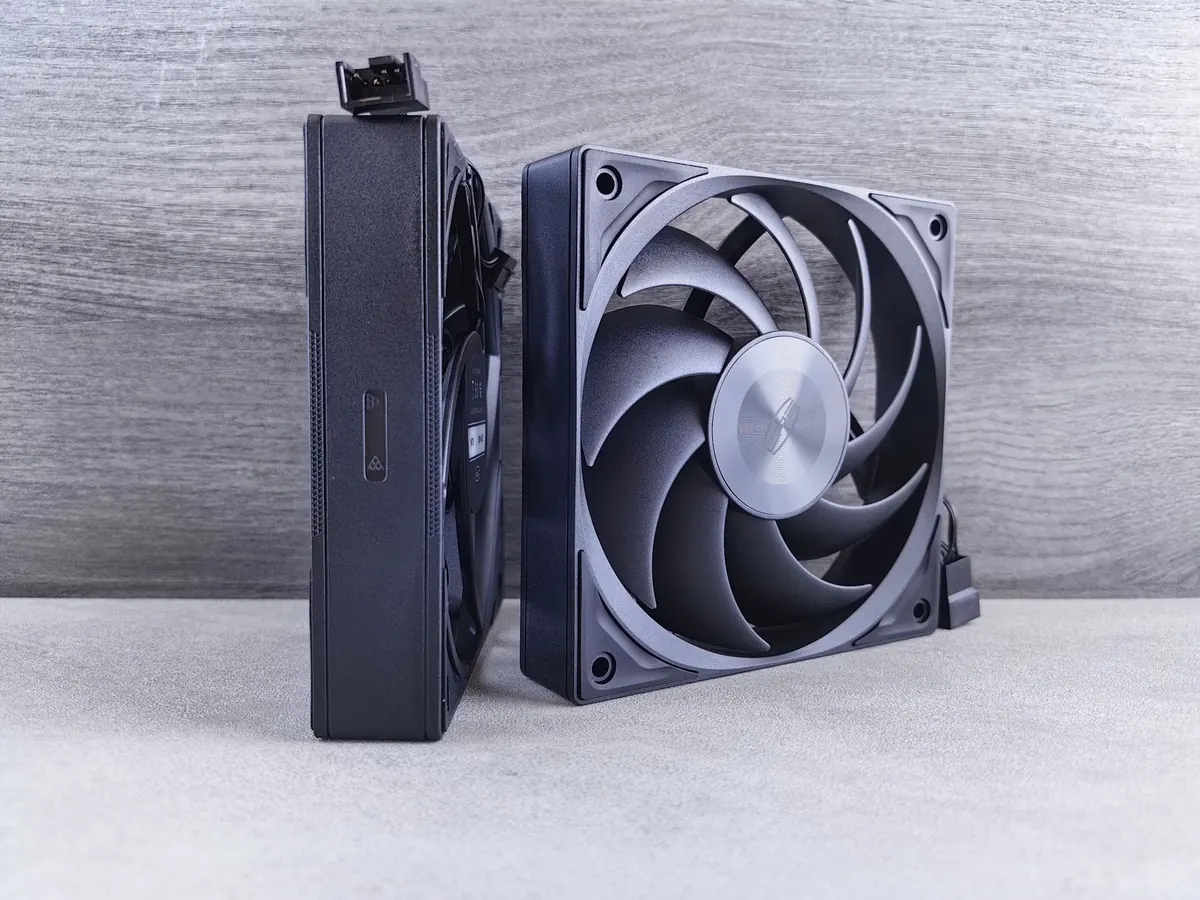
Start with the case itself. Most towers want at least one intake fan at the front or bottom and one exhaust at the rear or top. Air should move in one direction and leave. If you have never opened the side panel, check that the front intake is not blocked by a drive cage or a tangle of cables. Zip ties cost almost nothing and they measurably improve airflow.
Position matters too. A tower sitting on thick carpet pulls in lint and starves its bottom intake. Put it on a hard surface, a wooden board, or a small stand. Keep it out of direct sunlight; a case baking next to a south-facing window is fighting a battle it cannot win. Close the blinds during the hottest part of the day and let a fan move air through the room. If you already run an air conditioner, keep the machine out of the direct cold stream — rapid temperature swings cause condensation, which is worse than warmth.
Laptops Need a Different Approach
A laptop pulls cool air from underneath and pushes it out the back or side. Set it on a bed, a cushion, or your lap and you have sealed off the intake. Use a hard, flat surface, and raise the rear edge an inch or two with a stand or a couple of rubber feet. A cooling pad with fans helps on thicker gaming laptops; on thin ultrabooks the gain is small but real. Never leave a laptop in a parked car. Interior temperatures climb far beyond what a battery or display panel tolerates, and the damage can be permanent.
Cleaning Dust: A Once-a-Season Job
Dust is an insulator. A fine felt layer across a heatsink fin stack can raise temperatures by a noticeable margin, and pet hair is worse because it mats. Clean every three to six months, and every two months if you have cats, dogs, or a smoker in the house.
- Shut the machine down, unplug it, and hold the power button for a few seconds to drain residual charge.
- Move the case outside, to a balcony, or into a garage. You do not want that cloud indoors.
- Open the side panel and use short bursts of compressed air, keeping the can upright so it does not spit liquid propellant.
- Hold each fan blade still with a finger or a plastic tool while you blow. Spinning a fan past its rated speed can damage the bearing or push current back into the motherboard.
- Use a soft anti-static brush for stubborn buildup on heatsinks and filters. Avoid household vacuums directly on circuit boards; the plastic nozzle builds static. A vacuum held a few centimetres away from the case exterior is fine.
- Rinse or tap out washable front filters, let them dry completely, then reassemble.
While you are in there, watch the CPU temperature for a week. If it still climbs under load after a proper cleaning, the thermal paste has likely dried out. Repasting is straightforward on a desktop and fiddly on a laptop — if you are not comfortable, a repair shop will do it for a modest fee.
Surge Protection That Actually Works
A €5 power strip with a switch is not surge protection. A real surge protector contains metal oxide varistors that clamp voltage spikes and divert them to ground. They wear out, and they die quietly. Look for these things when you buy one:
- A joule rating you can compare. Higher numbers mean more energy the unit can absorb before it fails. Cheap strips are often unrated.
- A low clamping voltage. The lower the voltage at which it starts diverting, the less reaches your components.
- Protected-port coverage. If your router or NAS sits on the same desk, a unit with Ethernet or coax protection closes a path that power-only strips leave open.
- A status light. When the indicator goes dark, the protection is spent even though the outlets still work. Replace it.
- Enough outlets for your actual load. Never daisy-chain strips; plug the protector straight into a wall socket.
Renters and homeowners with old wiring should also consider a whole-home surge protector installed at the electrical panel. That is a job for a licensed electrician, not a weekend project.
When the Lights Blink
Brownouts and rapid off-on cycles are harder on electronics than a clean blackout. An uninterruptible power supply gives you a few minutes to save your work and shut down properly, and units with automatic voltage regulation smooth out brownouts without draining the battery. Put the tower, monitor, and router on it. Do not plug a laser printer or a space heater into a UPS; the surge current will trip it or kill the battery.
Software habits matter as much as hardware. Set your machine to sleep or hibernate after inactivity so a storm does not catch it running, keep important files backed up to a drive that stays unplugged or in the cloud, and shut down rather than leaving a render or a game running while you are out.
Warning Signs Worth Acting On
Random restarts, blue screens under load, a case that feels hot to the touch, or a fan that never stops spinning at full speed all point to a cooling or power problem. A burning smell means shut it down immediately and unplug it. Check CPU and GPU temperatures with free tools such as HWiNFO or Core Temp, and glance at Windows Event Viewer for unexpected shutdown entries. Catching a failing fan or a dying power supply early is far cheaper than replacing a motherboard.
A Simple Summer Routine
You do not need a lab. Once a week, glance at your temperatures in a monitoring tool. Once a month, check that case filters are clear and that the surge protector's indicator light is still on. Once a season, clean the dust and test the UPS battery. Before storm season, confirm your backups actually restore.
If any of this feels beyond what you want to tackle — repasting a laptop, opening a power supply, wiring a panel protector — hand it to a qualified technician or electrician. Ten minutes of professional work is a fair trade for another three years of quiet operation.
Photo: Andrey Matveev / Pexels